
How do I add a personalized note?Updated 8 months ago
To add a personalized message to your item, please follow these simple steps:
Choose your card - find and select the card you’d like to send, then click Personalize.
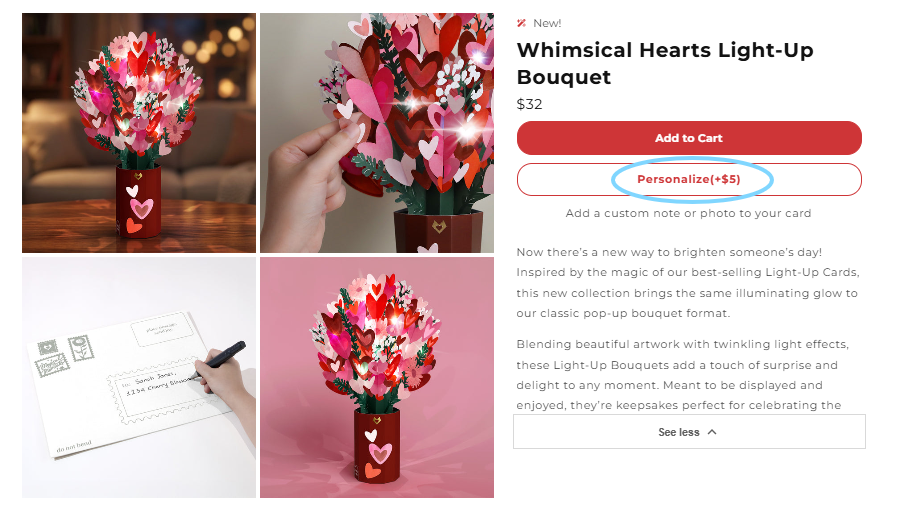
Select a layout - choose the layout you’d like to use for your message.
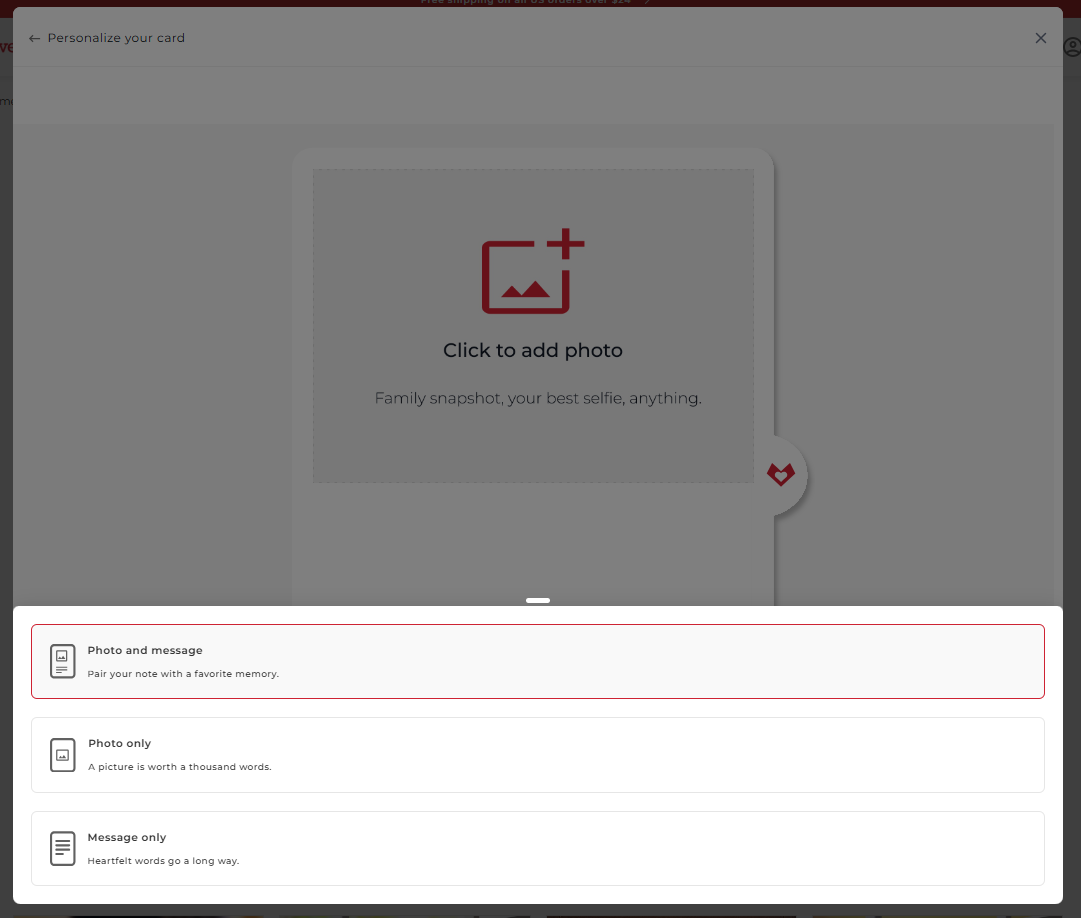
Add your message and/or photo, and choose how you’d like to send your card - customize your text using the options above the text box, including font style, text color, and alignment.
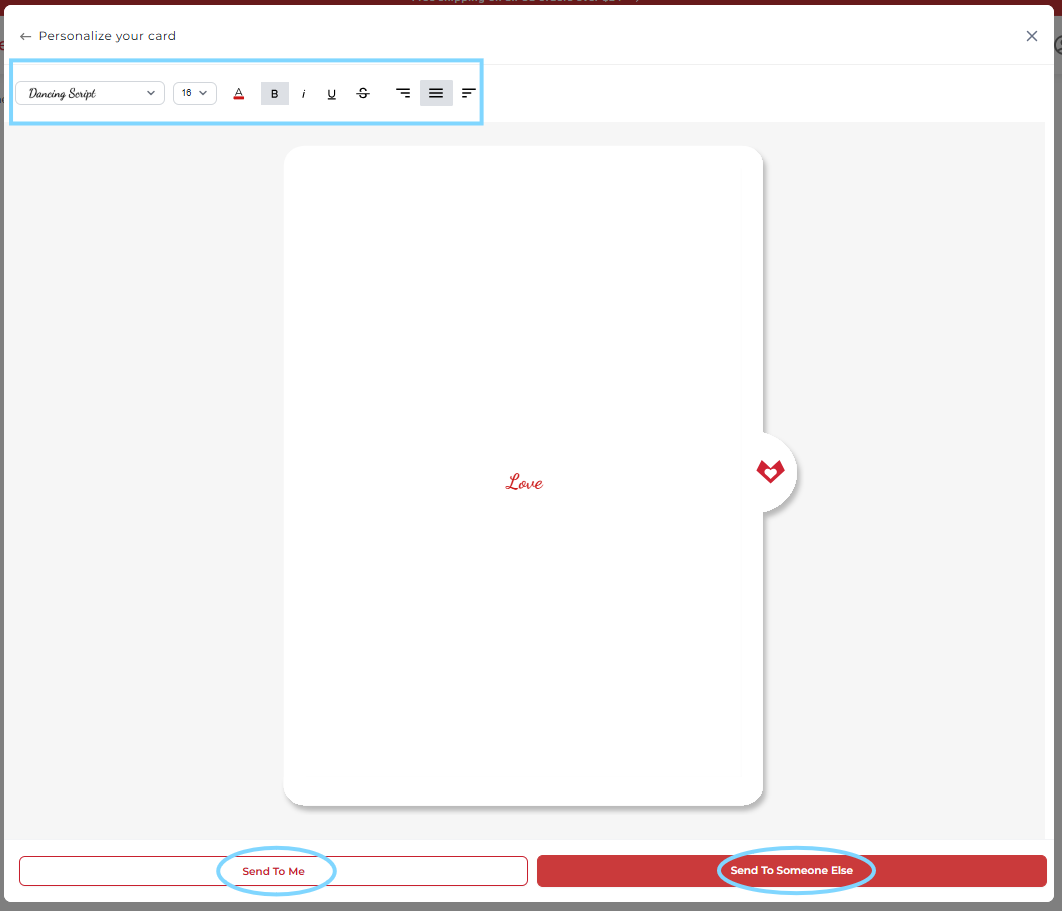
If you choose to send it directly to your recipient (Send To Someone Else):
- Enter the delivery address
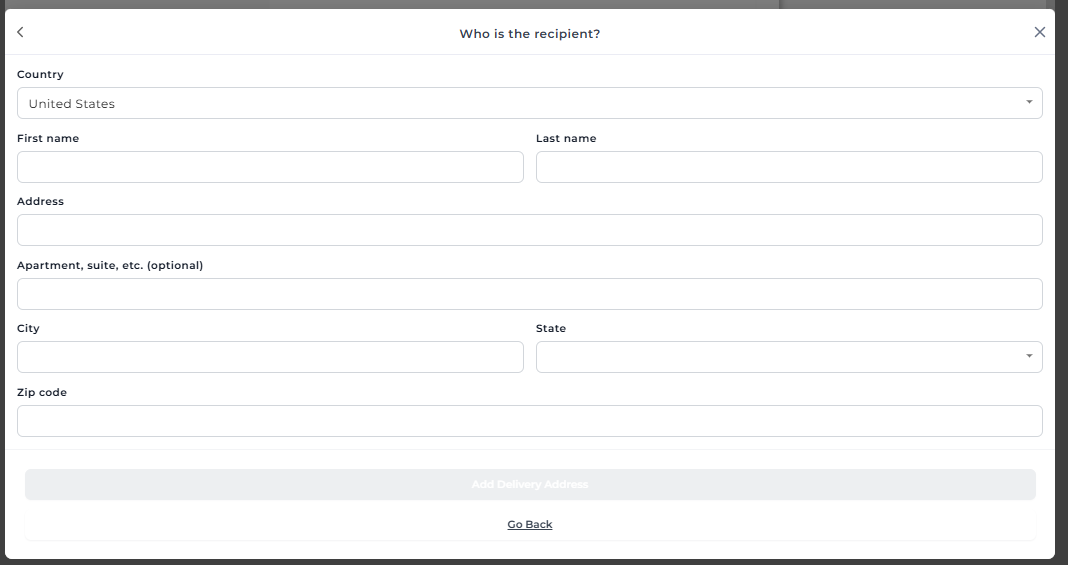
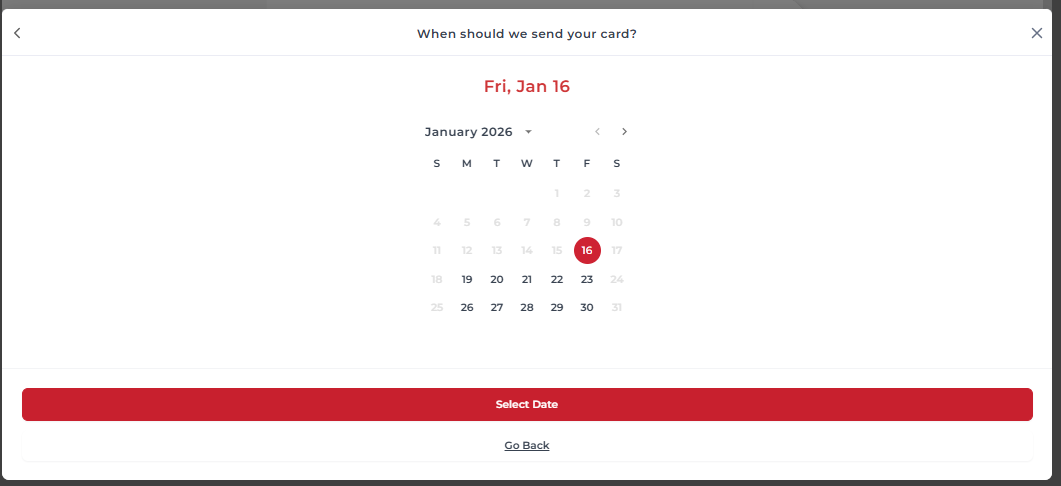
- Select delivery timing - choose whether you’d like to schedule delivery for a later date (shipped via standard shipping), or send it right away

- Choose a shipping option:
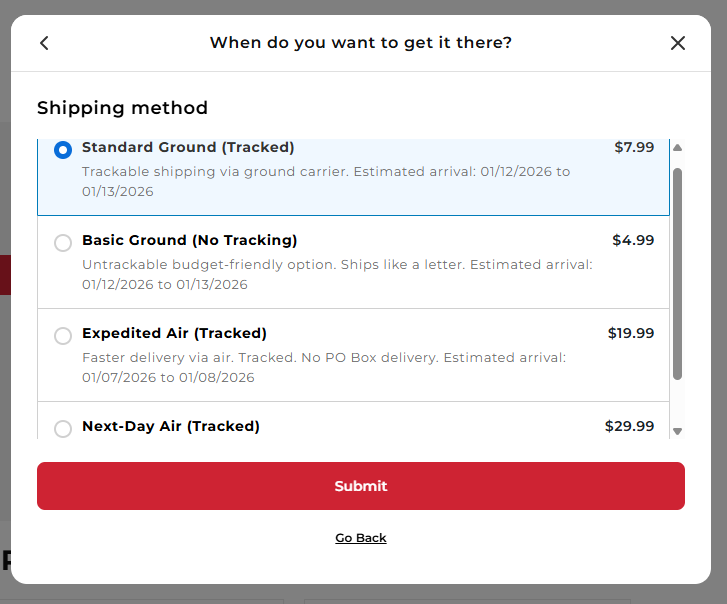
- If sending right away, select your preferred shipping method:
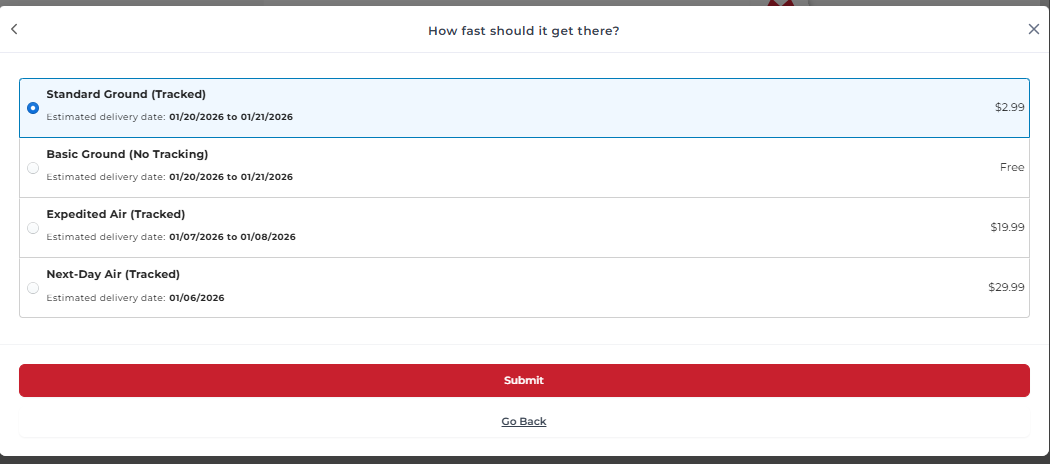
- If scheduling delivery, select your preferred date:
- If sending right away, select your preferred shipping method:
If you choose to send it to your own address (Send To Me):
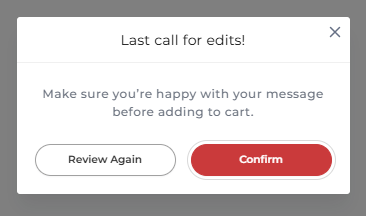
- Add the card to your cart by clicking confirm
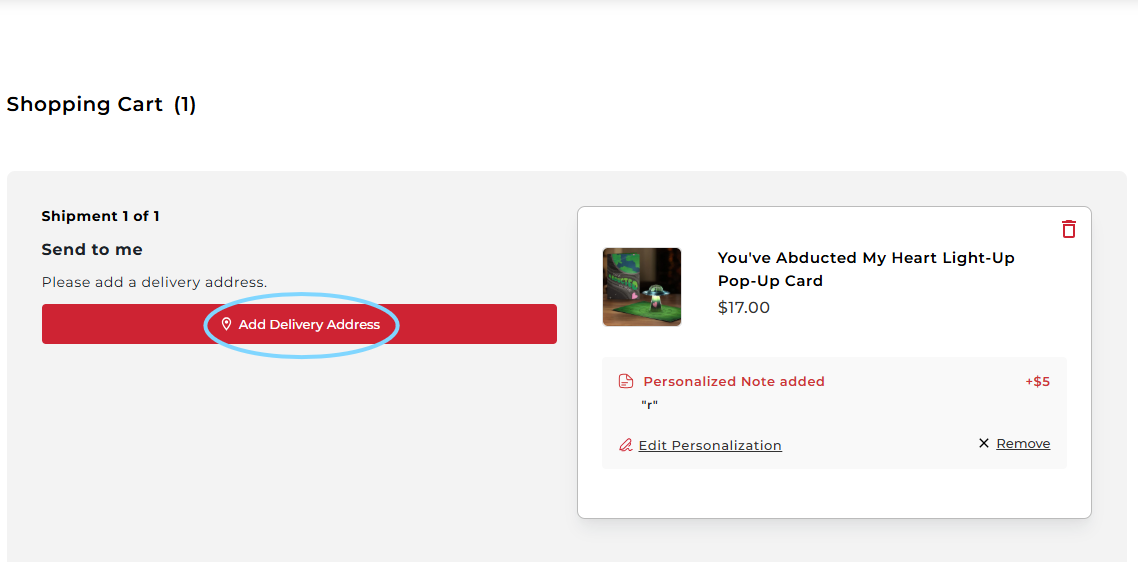
- Enter your delivery address - go to your cart by clicking the shopping cart icon at the top right corner, and in your cart, select Add Delivery Address, then enter the details
- Choose a shipping option - select your preferred shipping method at checkout.
4. Review - when everything appears correct, click 'Add to Cart' to proceed to checkout.
Note: We maintain a content policy that is outlined in our Terms of Service, and we reserve the right to cancel and refund orders that violate that policy. We don't want you to miss your special occasion, so please refrain from questionable content.
For customer privacy, please also know that we are unable to receive photos via email to upload on your behalf.